

Signatures
Create and manage email signatures for messages sent from Optimo Mobile.
Signatures
The Signatures module allows users to create and manage email signatures used when sending emails from the application, such as reorder request emails. Users can create a signature with a name and signature content. The default signature is automatically pre-selected when sending an email.
1. View Signatures
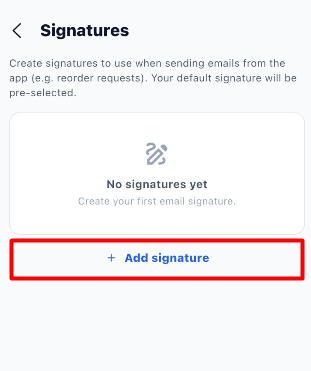
When you open the Signatures page, you can view the existing signatures. If no signatures have been created, the page displays No signatures yet and prompts you to create your first email signature.
Click + Add signature to create a new signature.
2. Create a New Signature
Click + Add signature to open the New signature form.
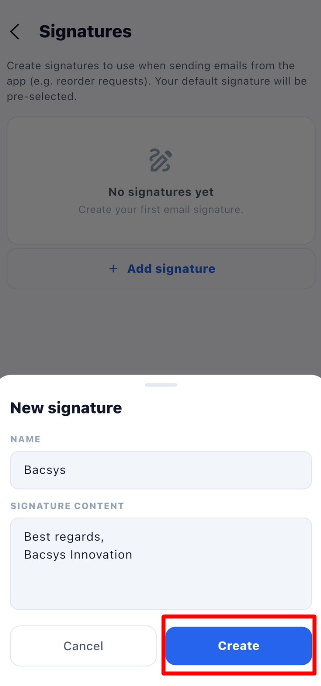
Fields in the New Signature Form
| Field | Description |
|---|---|
| Name | Enter a name to identify the signature. |
| Signature content | Enter the text that should appear at the end of your emails. |
Steps to Create a Signature
- Open the Signatures module.
- Click + Add signature.
- Enter a name in the Name field.
- Enter the required text in the Signature content field.
- Review the signature details.
- Click Create to save the signature.
- Verify that the new signature appears on the Signatures page.
Example:
-
Name: Bacsys
-
Signature content:
Best regards,
Bacsys Innovation
3. View the Created Signature
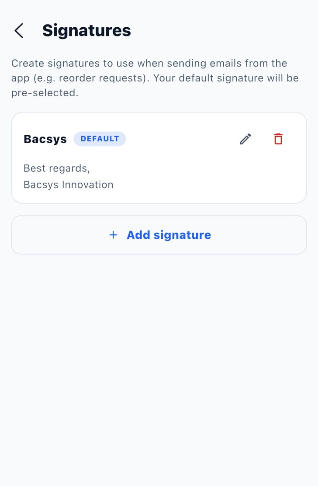
After clicking Create, the saved signature appears in the list with its name and signature content.
The signature card may also display a DEFAULT label to indicate that it is the default signature.
4. Manage Signatures
The signature card provides options to manage an existing signature.
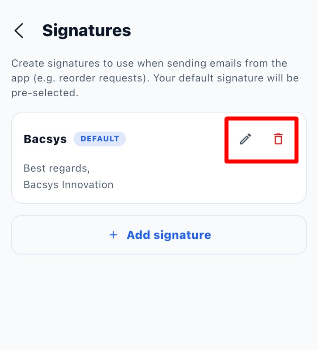
| Option | Description |
|---|---|
| Edit (pencil icon) | Allows you to edit the existing signature. |
| Delete (trash icon) | Allows you to delete the signature. |
| DEFAULT label | Indicates the signature currently set as the default. |
Edit an Existing Signature
- Open the Signatures module.
- Locate the signature you want to update.
- Click the pencil icon on the signature card.
- Update the name or signature content as required.
- Save the changes using the available save option.
Delete a Signature
- Open the Signatures module.
- Locate the signature you want to delete.
- Click the trash icon.
- Confirm the deletion if prompted.
Important: Review the signature before deleting it, especially if it is currently marked as the default.
5. Use the Default Signature
The application states that the default signature will be pre-selected when sending emails.
To use a signature:
- Create a signature with the required name and content.
- Set it as the default if the application provides that option.
- Open an email workflow, such as a reorder request.
- Review the pre-selected signature before sending the email.
6. Important Notes
- Create a signature to avoid repeatedly entering the same closing text in emails.
- Use a clear name so you can identify the correct signature easily.
- Review the signature content before saving.
- The default signature is pre-selected when sending emails.
- The screenshots show options to edit and delete signatures. The exact process for changing the default signature is not shown.
7. End-to-End Signature Workflow
Open the Application
        ↓
Navigate to More
        ↓
Open Signatures
        ↓
View Existing Signatures
        ↓
Click + Add Signature
        ↓
New Signature Form Opens
        ↓
Enter Signature Name
        ↓
Enter Signature Content
        ↓
Review the Details
        ↓
Click Create
        ↓
Signature Saved
        ↓
View the Signature in the List
        ↓
Edit or Delete the Signature if Required
        ↓
Use the Default Signature When Sending Emails