

Data Export
Data Export
The Data Export section allows users to download application data as CSV files for reporting, analysis, and record-keeping. Each data category has its own CSV button, allowing users to export the required information separately.
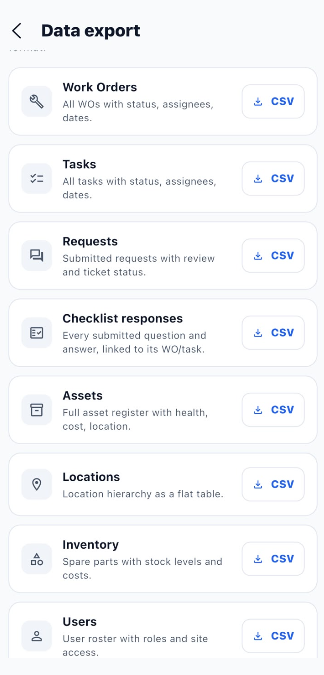
Available Export Options
| Data Category | Description |
|---|---|
| Work Orders | Exports all work orders with their status, assignees, and dates. |
| Tasks | Exports all tasks with their status, assignees, and dates. |
| Requests | Exports submitted requests with review and ticket status information. |
| Checklist responses | Exports every submitted question and answer, linked to its work order or task. |
| Assets | Exports the full asset register, including health, cost, and location information. |
| Locations | Exports the location hierarchy as a flat table. |
| Inventory | Exports spare parts information, including stock levels and costs. |
| Users | Exports the user roster with roles and site access. |
Steps to Export Data
- Open the Data Export section.
- Find the data category you want to download, such as Work Orders, Tasks, or Assets.
- Click the CSV button beside that category.
- The application downloads the corresponding data as a CSV file.
- Open the downloaded file in Excel or another application that supports CSV files.
- Review the exported records as needed.
Example: Export Work Orders
- Open Data Export.
- Locate the Work Orders section.
- Click the CSV button beside Work Orders.
- Download the generated CSV file.
- Open the file to review the exported work orders, including their status, assignees, and dates.
Note: Each CSV button exports data for its corresponding category. For example, clicking the Tasks CSV button downloads task data, while clicking the Work Orders CSV button downloads work order data.
End-to-End Data Export Workflow
Open Data Export
        ↓
View Available Data Categories
        ↓
Select the Required Category
        ↓
Click the Corresponding CSV Button
        ↓
Application Generates the Export
        ↓
CSV File Downloads
        ↓
Open the Downloaded File
        ↓
Review or Analyze the Exported Data