

Audit Trail
Audit Trail
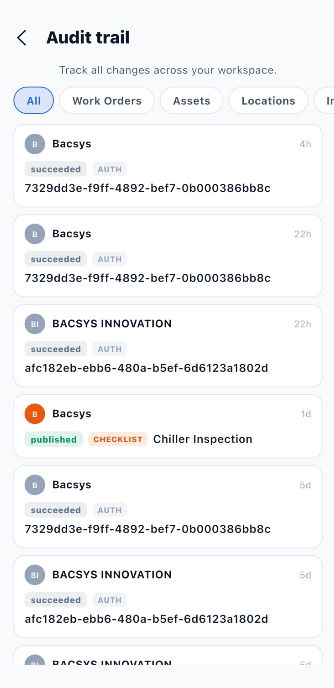
The Audit Trail module allows users to track changes and activities across the workspace. It displays audit records showing the organization or user associated with an activity, the activity status, the event category, related information, and when the event occurred.
1. View Audit Records
The Audit Trail page displays a chronological list of recorded events. Each record provides information about an activity performed within the workspace.
| Field / Option | Description |
|---|---|
| All | Displays audit records from all available categories. |
| Work Orders | Filters the audit trail to show events related to work orders. |
| Assets | Displays events related to assets. |
| Locations | Displays events related to locations. |
| Inventory | Displays events related to inventory. |
| Checklists | Displays events related to checklists. |
| Vendors | Displays events related to vendors. |
| Sites | Displays events related to sites. |
| Teams | Displays events related to teams. |
| Users | Displays events related to users. |
| Roles | Displays events related to roles and permissions. |
Note: Some category filters may require horizontal scrolling to view.
2. Understand an Audit Record
Each audit record contains details that help users identify what happened and when it happened.
| Field | Description |
|---|---|
| Organization / Name | Displays the organization or name associated with the audit event. |
| Status | Indicates the result of the recorded event, such as succeeded or published. |
| Event Type | Identifies the category of activity. For example, AUTH indicates an authentication-related event, while CHECKLIST identifies a checklist-related event. |
| Reference / Details | Displays the available event identifier or related information. |
| Time | Shows when the event occurred, using a relative time such as 4h, 22h, 1d, or 5d. |
3. Filter Audit Records by Category
Use the category tabs at the top of the page to view activities for a particular area of the application.
Steps:
- Open the Audit Trail module.
- Select All to view all available audit records.
- Select the required category, such as Work Orders, Assets, or Locations.
- Select another category, such as Inventory, Checklists, Vendors, Sites, Teams, Users, or Roles, when needed.
- Review the displayed records to identify the recorded activity and its time.
- Select All again to return to the complete audit record list.
4. Review What Happened and When
The Audit Trail helps administrators review recorded activities and understand when those activities occurred.
For example, the screenshot shows:
- Authentication events marked as
succeeded. - A checklist event marked as
published, associated with the Chiller Inspection checklist. - Relative timestamps indicating how long ago the events occurred.
Steps to Review an Activity:
- Open the Audit Trail module.
- Select the relevant category.
- Locate the record you want to review.
- Check the displayed name or organization.
- Review the status and event type.
- Check the timestamp to determine when the activity occurred.
- Review the available reference or event details.
Note: The screenshot displays relative timestamps rather than full calendar dates and times. The exact date and time, as well as the full event details, depend on the information provided by the audit record.
5. End-to-End Audit Trail Workflow
Open the Audit Trail Module
        ↓
View the Available Audit Records
        ↓
Select All or a Specific Category
        ↓
Choose Work Orders, Assets, Locations,
Inventory, Checklists, Vendors, Sites,
Teams, Users, or Roles
        ↓
Review the Displayed Audit Records
        ↓
Check the Organization or Name
        ↓
Review the Event Status and Type
        ↓
Check the Reference or Event Details
        ↓
Review When the Activity Occurred
        ↓
Continue Reviewing Other Records
        ↓
Select Another Category if Required