

Work Order Geofence
1. Work Order Geofence
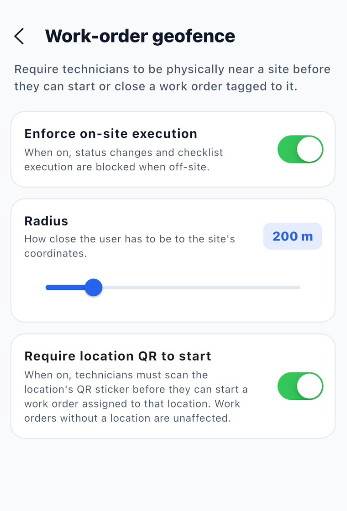
The Work Order Geofence setting allows administrators to control where technicians can start or close work orders. It ensures that technicians are physically present within the configured distance of the site before performing work order actions.
Work Order Geofence Settings
| Setting | Description |
|---|---|
| Enforce on-site execution | Controls whether work order execution is restricted based on the technician's physical location. When enabled, status changes and checklist execution are blocked when the technician is outside the configured site area. |
| Radius | Defines how close the technician must be to the site's coordinates to perform the work order actions. The configured radius is displayed in meters. |
| Require location QR to start | Requires technicians to scan the site's QR code before they can start a work order assigned to that location. Work orders without a location are not affected. |
1.1 Enforce On-Site Execution
The Enforce on-site execution option ensures that technicians are physically present near the assigned site before they can perform work order activities.
Steps
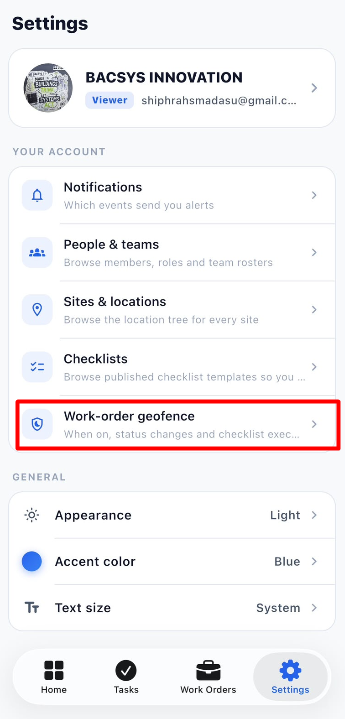
- Open Settings.
- Select Work Order Geofence.
- Enable the Enforce on-site execution toggle.
- Configure the required Radius.
- The system checks the technician's location against the site's coordinates.
- If the technician is outside the configured radius, work order status changes and checklist execution are blocked.
- If the technician is within the configured radius, the work order can be executed normally.
1.2 Configure Radius
The Radius setting determines the maximum distance from the site's coordinates within which the technician is considered to be on-site.
Steps
- Open Work Order Geofence.
- Locate the Radius setting.
- Adjust the radius using the slider.
- The selected radius is displayed in meters.
- Set the required distance based on the site's requirements.
1.3 Require Location QR to Start
The Require location QR to start option adds an additional location verification step before a technician can start a work order.
Steps
- Open Work Order Geofence.
- Enable the Require location QR to start toggle.
- Assign a work order to a specific location.
- The technician must go to the assigned location.
- The technician scans the location's QR code.
- After the QR code is successfully scanned, the technician can start the work order.
- Work orders without a location are not affected by this setting.
1.4 Work Order Geofence Workflow
Open Settings
      ↓
Select Work Order Geofence
      ↓
Configure Enforce on-site execution
      ↓
Set Required Radius
      ↓
Enable Require location QR to start
      ↓
Technician Goes to Assigned Site
      ↓
Location Verification
      ↓
Scan Location QR Code
      ↓
Check Technician Distance
      ↓
Technician Within Configured Radius
      ↓
Start Work Order
      ↓
Execute Work Order / Checklist