

Text Size
Text Size
The Text Size setting allows users to adjust the text size throughout the Optimo Lite application. Users can either follow the device's default text size or select a preferred text size based on their readability needs.
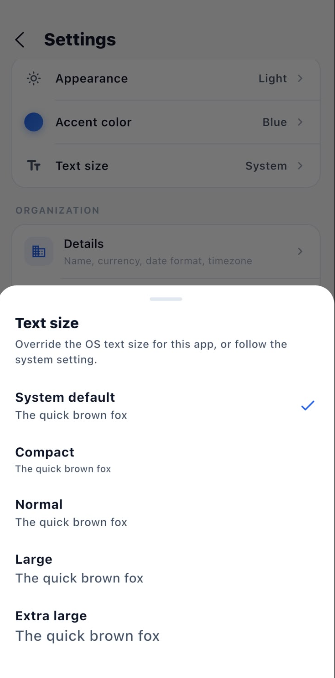
Text Size Options
1. System Default
Uses the text size configured in the device's operating system.
Description:
The application follows the system-level text size settings.
2. Compact
Displays text in a smaller size, allowing more content to fit on the screen.
Description:
Provides a compact text display for users who prefer smaller text.
3. Normal
Displays text using the standard application text size.
Description:
Provides the default and recommended text size for general use.
4. Large
Increases the text size for improved readability.
Description:
Suitable for users who prefer larger text while using the application.
5. Extra Large
Displays text in the largest available size.
Description:
Provides enhanced readability for users who require significantly larger text.
How to Change Text Size
- Open the Settings module.
- Select Text Size.
- The available text size options are displayed.
- Select the required option:
- System Default
- Compact
- Normal
- Large
- Extra Large
- The check mark indicates the currently selected text size.
- The selected text size is applied to the application.
Note: The available text size options may affect how text is displayed across different screens and modules in Optimo Lite.