

Notification
1. Notifications
The Notifications section allows users to control which events generate in-app and email notifications. Users can enable or disable individual notification types based on their requirements.
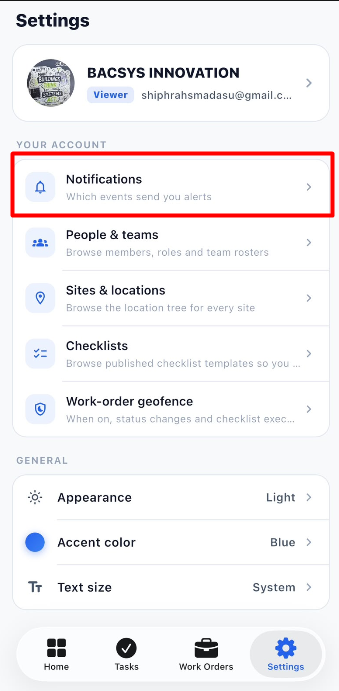
Steps
- Open Settings.
- Click Notifications.
- The Notification Preferences section is displayed.
- Review the available notification options.
- Use the toggle switch to enable or disable the required notifications.
- Configure each notification according to your preference.
- After making changes, click Save.
- The notification preferences are saved and applied to the account.
Notification Options
| Notification | Description |
|---|---|
| Work order assigned | Sends a notification when a work order is assigned to you or your team. |
| Work order completed | Sends a notification when a work order you follow is marked as completed. |
| Work order overdue | Sends a notification when a work order passes its due date. |
| New comment | Sends a notification when someone comments on a work order you follow. |
| SLA breach | Sends a notification when a work order breaches its SLA deadline. |
| Request approved | Sends a notification when your maintenance request is approved. |
| Request declined | Sends a notification when your maintenance request is declined. |
| Approval needed | Sends a notification when a work order requires your approval. |
Save Notification Preferences
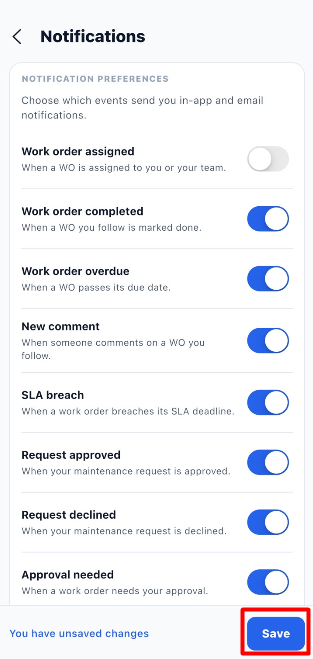
- Open Settings.
- Select Notifications.
- Enable or disable the required notification options.
- Review the selected notification preferences.
- Click Save.
- The updated notification settings are saved.
Notification Workflow
Open Settings
      ↓
Click Notifications
      ↓
Open Notification Preferences
      ↓
Review Notification Options
      ↓
Enable / Disable Required Notifications
      ↓
Review Changes
      ↓
Click Save
      ↓
Notification Preferences Saved
      ↓
Configured Notifications Are Applied