

QR Branding
QR Branding
The QR Branding section allows users to customize the appearance of printable QR cards for assets, work orders, and locations.
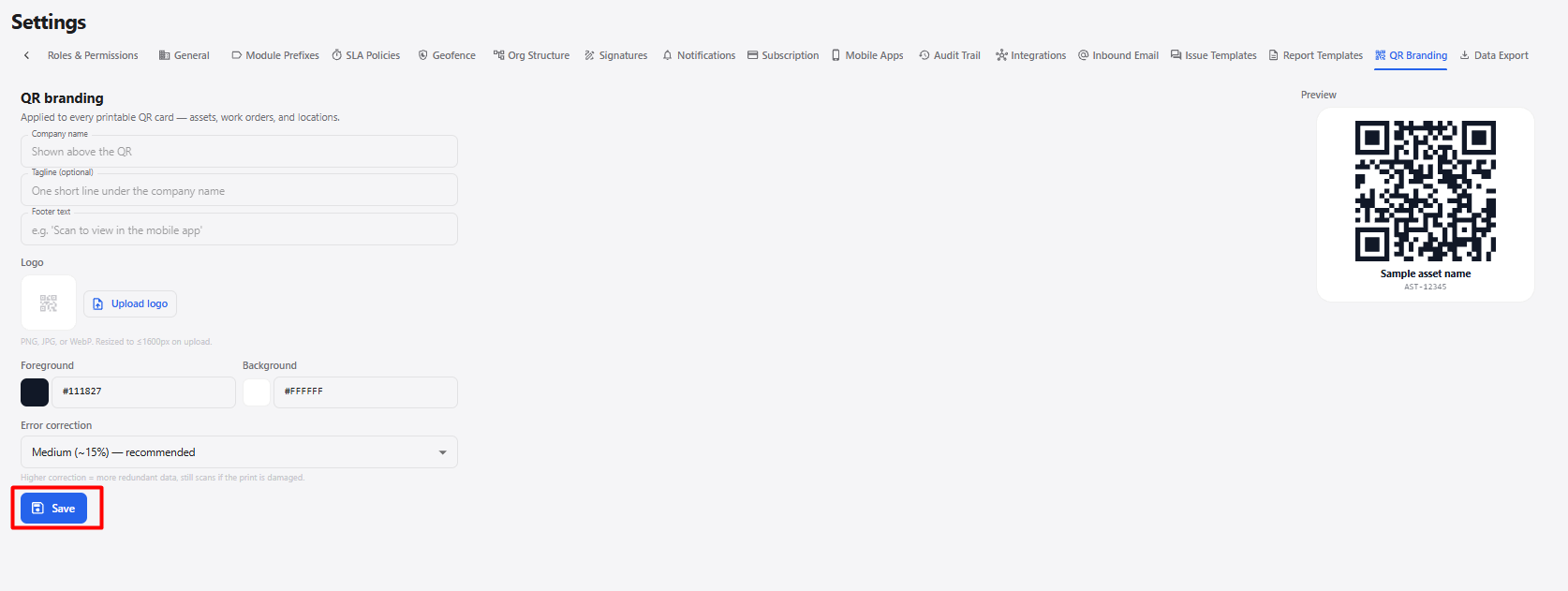
1. QR Branding Settings
| Field / Option | Description |
|---|---|
| Company name | Enter the company name displayed above the QR code. |
| Tagline (optional) | Enter a short tagline displayed below the company name. |
| Footer text | Enter the text displayed below the QR code. |
| Upload logo | Upload a company logo to display on the QR card. Supported formats are PNG, JPG, or WebP. |
| Foreground | Select the foreground color of the QR code. |
| Background | Select the background color of the QR code. |
| Error correction | Select the QR code error-correction level. |
| Preview | Displays a preview of how the customized QR card will appear. |
| Save | Saves the QR branding configuration. |
2. QR Branding Workflow
Open Settings
      ↓
Select QR Branding
      ↓
Enter Company Name
      ↓
Enter Tagline / Footer Text
      ↓
Upload Logo if Required
      ↓
Set Foreground and Background Colors
      ↓
Select Error Correction
      ↓
Review QR Preview
      ↓
Click Save
      ↓
QR Branding Updated