

Inbound Mail
Inbound Mail
The Inbound Mail section allows customers to send emails to a configured address and automatically create requests in the workspace. Email replies are threaded back to the same request.
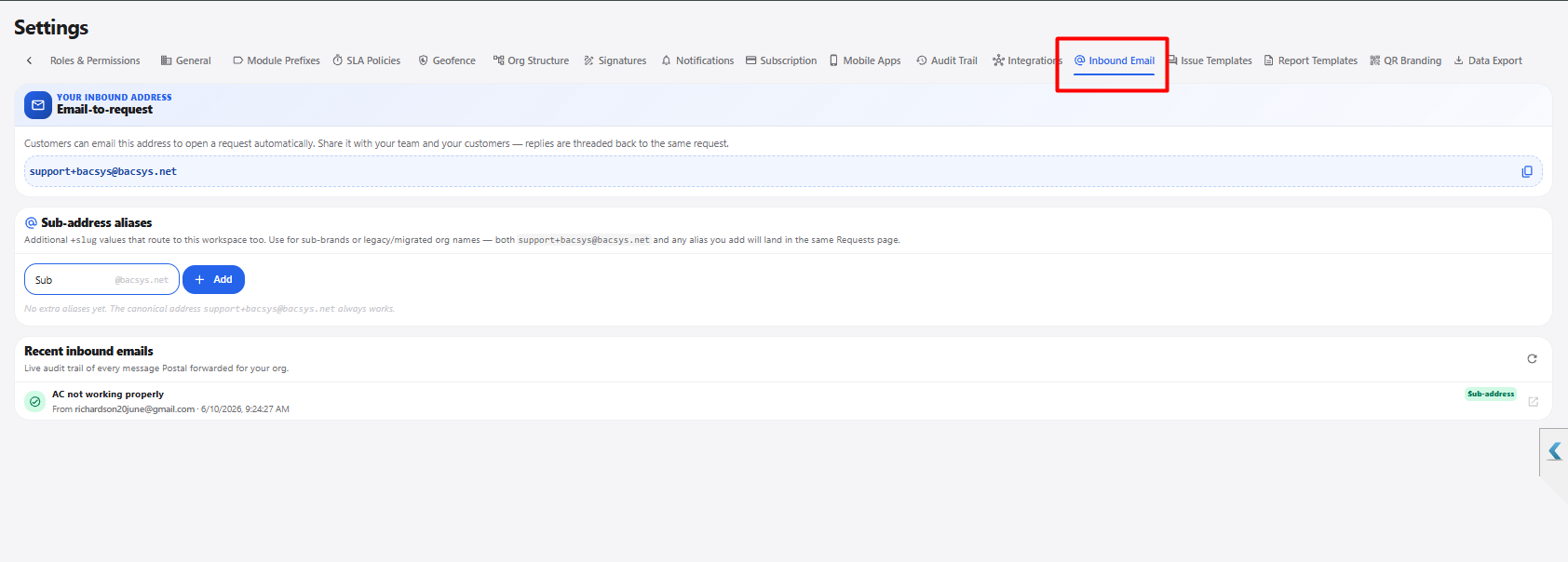
1. Inbound Mail Configuration
| Section / Option | Description |
|---|---|
| Email-to-request | Displays the inbound email address that customers can use to create requests automatically. |
| Your inbound address | Displays the configured email address for receiving customer requests. |
| Copy icon | Allows the inbound email address to be copied. |
| Sub-address aliases | Allows additional email aliases to be created for routing emails to the workspace. |
| Alias | Enter the name of the additional email alias. |
| Add | Adds the entered sub-address alias. |
| Recent inbound emails | Displays recently received emails sent to the inbound address or its aliases. |
| Refresh | Refreshes the list of recently received inbound emails. |
2. Recent Inbound Emails
| Field | Description |
|---|---|
| Subject | Displays the subject of the received email. |
| Sender | Displays the email address of the person who sent the email. |
| Received Date & Time | Displays when the email was received. |
| Sub-address | Indicates that the email was received through a configured sub-address alias. |
3. Inbound Mail Workflow
Open Settings
      ↓
Select Inbound Mail
      ↓
View Email-to-request Address
      ↓
Share Address with Customers
      ↓
Customer Sends Email
      ↓
Email Received by Workspace
      ↓
Request Created Automatically
      ↓
Email Replies Remain Threaded to the Same Request
      ↓
View Request in Requests Module